The Ultimate Connection Guide
Database systems course - Tel Aviv University
Contents:
Database connecting in general
Oracle Express Edition (XE) database
Important Passwords
The following are the updated users/passwords at TAU's oracle server:
For the HR schema: hr_readonly/tiger
For creating your own user: Tau_Dummy/oracle
Database connecting in
general
In order to connect to a database you have mainly two options:
- Connecting to an Oracle Express Database you have installed on your home computer
- Connect to the Oracle Enterprise Database already installed in TAU Computer Sciences Labs.
You can connect to both databases using various database clients, such as SQL*Plus and SQLDeveloper, that can be installed on your home computer as well.
In the next sections we will describe some of the connection options with the various tools. For these descriptions we will be using the following details:
|
Connection option |
User |
Password |
SID |
Host |
Port |
Comments (don’t forget to…) |
|
From home client to home database |
hr |
Whatever you choose, needs to unlock user |
xe |
Localhost (default) |
1521 (default) |
1. Install XE database 2. Install client software |
|
System |
As specified during the installation. |
|||||
|
Connect from home client to TAU database |
Your TAU user |
Your TAU password |
csodb |
Localhost |
1555 (defined by ssh) |
1. Install client software 2. Create TAU database account 3. Build SSH tunnel |
|
Connect from TAU lab to TAU database |
Your TAU user |
Your TAU password |
csodb |
orasrv |
1521 (default) |
1.
Create TAU database account |
Creating
TAU database account
If this is your first time to login to Oracle you will need to create your account. Please follow this procedure:
-
Invoke SQL*Plus (see in the
following sections how to do that) you will need to login using this account:
sqlplus
Tau_Dummy/oracle@csodb
-
Run the following command with
your preferred username:
exec
user_creation('YOUR_PREFERRED_USERNAME');
-
Congratulations, you are done! You
can restart SQL * Plus and log with your new username (the password is the same
as the username).
Note that you will be asked to change your password on your first login.
sqlplus
YOUR_PREFERRED_USERNAME/YOUR_PREFERRED_USERNAME@csodb
Oracle
Express Edition (XE) database
Tutorial on installation and connection
http://st-curriculum.oracle.com/tutorial/DBXETutorial/index.htm
Download product from:
http://www.oracle.com/technology/software/products/database/xe/index.html
Oracle Client software:
SQL*Plus,
From home
This is a part of the Oracle Express Edition database in <oracle home>app\oracle\product\10.2.0\server\BIN
To run it double-click on sqlplus.exe
In TAU CS lab (or “Putty” from home)
Before you can run SQL*Plus you need to:
Set a few variables. Again, type the following (tip: copy-paste..):
setenv LD_LIBRARY_PATH /usr/local/lib/instantclient_11_1/
setenv TNS_ADMIN /usr/local/lib/instantclient_11_1/
setenv LD_LIBRARY_PATH /usr/local/lib/instantclient_11_1/
setenv TNS_ADMIN /usr/local/lib/instantclient_11_1/
Run SQL *Plus. (Note that the username and password for “Tau_Dummy” is set here):
sqlplus Tau_Dummy/oracle@csodb
SQLDeveloper
Tutorial on installation and connection
http://st-curriculum.oracle.com/tutorial/SQLDeveloper/html/tutorialhome.htm
Download product from:
http://www.oracle.com/technology/software/products/sql/index.html
Example for using in TAU lab
Log in to your account
1. Open a terminal
2. Type the command "sqldeveloper &" in the command prompt
3. The first time you run the program you will be asked if you would like to migrate from previous releases – answer “No”
4. Also, you are welcome to download any suggested updates.
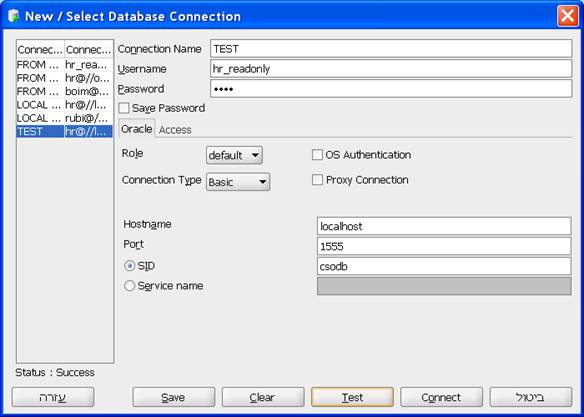
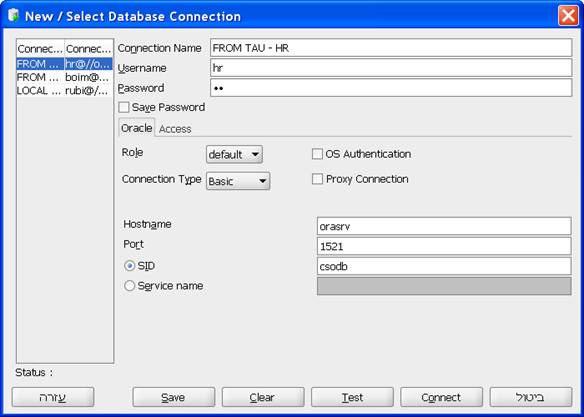
NOTE: The following settings are for creating a connection within TAU. To connect from home via tunneling you will need to change the hostname and port according to the table at the start of this page (also look at the following tunneling section)
The first thing you need to do is to create a connection to the database:
1. In the connections tab, right click the connections icon and select: “New Connection”
2. Type in a connection name, username & password, leave the role unchanged
3. In the basic tab enter the following values:
· Hostname = orasrv
· Port = 1521
· SID = csodb
4. Test the connection and if succeeded the press connect
Setting
up an SSH Tunnel
The idea behind creating a tunnel is that your client would ‘think’ that the server is at localhost:1555, but the tunnel established from your machine (localhost) to nova.cs.tau.ac.il would redirect the requests to orasrv:1521
How to do that?
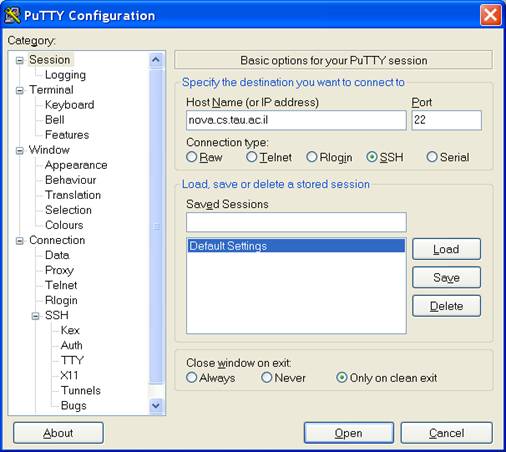
Run the latest version of Putty (note that old versions might not connect, so download the latest - this was done with 0.60) .
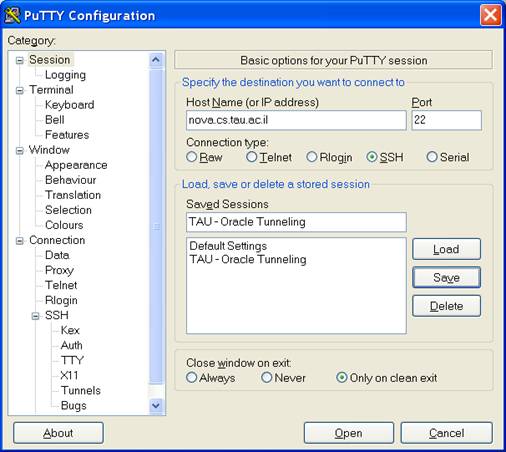
Set it to point to Nova (nova.cs.tau.ac.il on port 22) by ssh
We now define the tunnel:
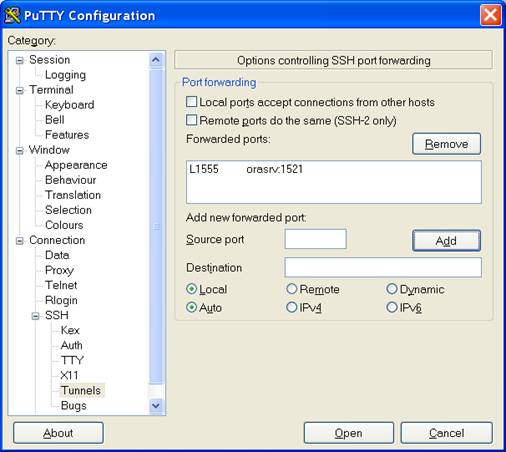
- Select “Connection à SSH à Tunnels” from the category tree.
-
Enter the following:
Source port: 1555 (or something else you want..)
Destination: orasrv:1521
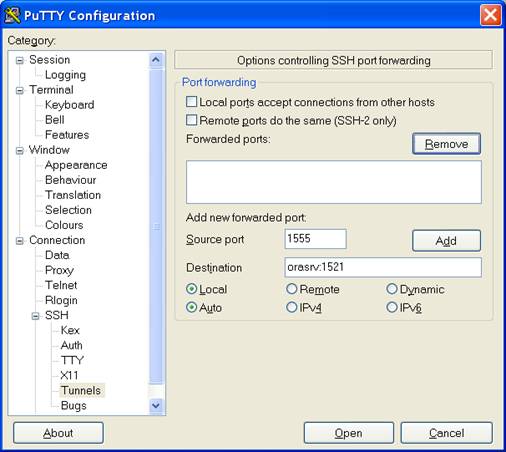
Now hit the “Add” button. Your screen should look something like this:
Now let’s just save the settings.. Go back to “Session” category, and your preferred name (in the picture “TAU - Oracle Tunneling”) and click save.
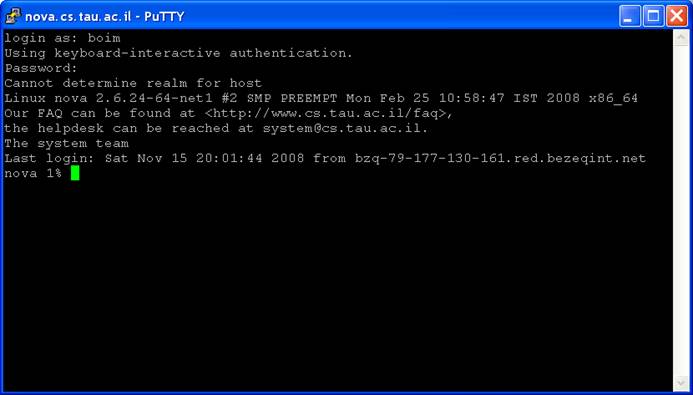
That’s it! Don’t forget to actual connect to nova by entering your unix username and password..
The following image is for using SQLDeveloper with the tunnel: